AI & Automation
How to Automate Personal Training Session Reminders That Work
Learn how to automate personal training session reminders, reduce no-shows, handle confirmations, and keep coaches' calendars accurate without manual texting.
 Watch · 20s
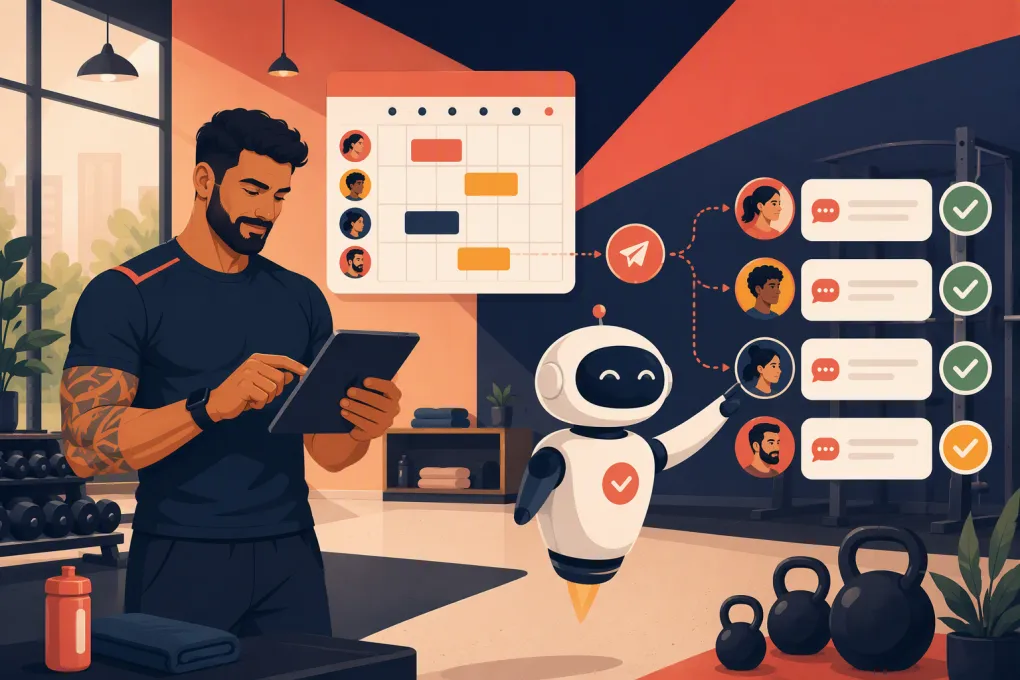
Automating personal training reminders sounds simple: send a text before each session. In practice, the reminder itself is only one piece of the workflow. Clients reply with questions, ask to move their appointment, cancel at the last minute, or ignore the message entirely. If those responses still land on a coach’s personal phone, you have automated the notification—not the operation.
A useful reminder system should confirm attendance, keep the schedule current, route exceptions, and tell the trainer what changed. Here is how to build that system without bombarding clients or creating more administrative work.
Why manual session reminders break down
Manual reminders often work when one trainer has a small book of clients. They become unreliable as the gym adds coaches, locations, recurring sessions, and different cancellation policies.
Common failure points include:
- Coaches remembering to text some clients but not others
- Messages coming from personal numbers with no shared history
- Cancellations staying in a text thread instead of reaching the calendar
- Front-desk staff and trainers contacting the same client
- Clients replying after hours and waiting until morning for help
- Recurring appointments being changed verbally but not updated in the system
- No clear record of whether a reminder was sent, delivered, or answered
The operational goal is not to send more texts. It is to create one reliable path from scheduled session to confirmed, rescheduled, canceled, completed, or no-show.
See how Fitty handles personal training follow-up around the clock →
Start with one source of truth
Before creating any automation, decide which calendar owns the appointment. This should be the scheduling system your staff actually uses—not a coach’s paper diary, a separate personal calendar, or an unofficial spreadsheet.
Each session record should contain at least:
- Client name
- Mobile number and email address
- Assigned trainer
- Date, time, and expected duration
- Location or room
- Session type
- Appointment status
- Relevant package or membership status
- Communication consent and opt-out status
The automation should read from and write back to this same record. If a client reschedules, the original reminder sequence must stop and a new sequence must begin for the updated time. Otherwise, the client may receive reminders for an appointment that no longer exists.
For recurring sessions, store each occurrence as an individual appointment. That lets the client change Tuesday’s session without accidentally changing every Tuesday on the schedule.
Build reminders around appointment status
A reminder workflow needs defined statuses. A practical set is:
- Booked: The session has been added to the calendar.
- Confirmed: The client has explicitly confirmed attendance.
- Reschedule requested: The client wants another time but has not selected one.
- Canceled: The session will not happen.
- Completed: The trainer delivered the session.
- No-show: The client did not attend.
Every automated action should depend on one of these statuses. For example, a confirmed appointment may not need another request for confirmation, but it can still receive a short same-day reminder. A canceled appointment should receive nothing except a cancellation acknowledgment and, where appropriate, a rebooking option.
This status logic prevents the most frustrating automation mistake: continuing to message a client after the issue has already been resolved.
Choose a reminder sequence that fits the service
There is no universal schedule for every personal training business. Session frequency, booking lead time, cancellation policy, and client habits all matter. A solid starting workflow includes three stages.
1. Immediate booking confirmation
Send this as soon as the session is created or changed. Include the details the client needs to catch an error immediately:
Hi {{first_name}}, your personal training session with {{trainer_name}} is booked for {{day}}, {{date}} at {{time}} at {{location}}. Reply here if you need help with the booking.
For a rescheduled appointment, make the change explicit rather than sending another generic confirmation.
Your session with {{trainer_name}} has been moved to {{day}}, {{date}} at {{time}}. The previous appointment is canceled.
2. Advance confirmation request
Send an advance reminder far enough ahead that the open slot can still be managed. Many operators use the day before, but your timing should reflect your cancellation policy and how easily trainers can fill openings.
Reminder: you are scheduled with {{trainer_name}} tomorrow at {{time}}. Reply C to confirm or R if you need help rescheduling.
Do not ask clients to confirm if your system cannot process the answer. A reply sitting unread in a shared inbox creates false confidence.
3. Same-day reminder
Keep this message short and operational. It should reinforce the time and location without restarting the entire confirmation conversation.
See you today at {{time}} for your session with {{trainer_name}} at {{location}}. Please arrive ready to begin on time.
For early-morning appointments, send the final reminder the prior evening rather than waking the client with an automated message.
Automate the replies, not just the sends
This is where basic reminder tools and a useful AI receptionist begin to separate.
Your workflow should recognize at least four reply types:
- Confirmation: Mark the appointment confirmed and acknowledge it.
- Cancellation: Apply your policy, update the appointment, and offer the next step.
- Reschedule request: Present valid openings or route the client to someone who can.
- Question or unclear response: Answer from approved business information or escalate it.
Clients do not always follow instructions. One may reply C, another may write “I’ll be there,” and another may ask, “Can we do 6 instead?” A conversational agent can interpret those responses more effectively than a workflow that only recognizes one-letter commands.
Fitty, WTF Go’s AI receptionist, can manage follow-up conversations 24/7 rather than leaving responses in a queue until a trainer finishes the next session. It can help answer routine questions and move booking conversations forward while your team focuses on clients in the building.
See how Fitty can turn reminder replies into handled conversations →
Define rules for cancellations and rescheduling
Automation should enforce your process consistently, but it should not invent policy. Document the rules before configuring the workflow:
- How much notice is required to cancel without losing a session?
- Can clients reschedule themselves?
- Which appointment types can be moved automatically?
- Can a client switch trainers or locations?
- What happens when no eligible times are available?
- Who approves exceptions?
- When should a staff member take over?
Keep policy messages direct and neutral. If a cancellation may affect a package balance or incur a fee, explain the rule and route disputed cases to a person. Do not let an automated agent argue with a client.
When offering alternative appointments, only show real availability. The system needs to account for trainer schedules, session duration, buffers, location, room capacity, and appointment type. A theoretically open hour is not bookable if the assigned trainer is working at another location.
Keep trainers informed without adding inbox noise
Coaches do not need a notification for every automated text. They need actionable changes.
A useful trainer view or digest should show:
- Today’s sessions in chronological order
- Confirmed and unconfirmed clients
- New cancellations
- Reschedule requests needing attention
- Package or account issues that may affect service
- Relevant client notes
Reserve immediate alerts for events that require intervention, such as a same-day cancellation, an unresolved scheduling question, or a client requesting a human. Everything else can remain in the appointment history or appear in a pre-shift summary.
For multi-location businesses, route alerts by both location and coach. A cancellation at one site should not interrupt every front-desk employee in the company.
Coordinate reminders with billing and package status
Personal training appointments often depend on packages, session credits, memberships, or account standing. Reminder automation should recognize those relationships without turning every appointment message into a collection notice.
Useful rules include:
- Flagging insufficient session credits before the appointment
- Sending a secure payment or package-renewal path when appropriate
- Preventing staff from discovering an account issue at check-in
- Separating ordinary reminders from sensitive billing conversations
- Escalating disputed or unusual balances to an employee
Fitty can follow up and collect dues as part of the broader WTF Go operating system. That helps keep scheduling and payment workflows connected instead of forcing staff to reconcile a booking platform, payment inbox, and coach text thread.
Explore automated scheduling and dues follow-up with WTF Go →
Respect consent, message frequency, and channel preferences
Use automated texts and emails only in line with applicable consent, opt-out, carrier, and messaging requirements. Appointment-related messages should stay focused on the service the client booked. Promotional campaigns require their own review and should not be quietly inserted into operational reminders.
At a minimum:
- Record how and when the client agreed to receive messages
- Honor opt-out requests promptly
- Maintain an alternative contact process for opted-out clients
- Identify the business clearly
- Avoid unnecessary late-night or early-morning messages
- Do not include sensitive health or payment details in ordinary texts
- Coordinate all automations so different systems do not send duplicates
Have qualified counsel review your messaging practices if you are unsure which rules apply to your business and use case.
Test the workflow before using it with clients
Create test appointments that cover the paths your team encounters in real life. Do not test only the happy path.
Check what happens when:
- A client confirms normally
- A client replies in conversational language
- A session is rescheduled after the first reminder
- A recurring appointment is changed once
- A client cancels inside the policy window
- The requested trainer has no openings
- A client has opted out of text messages
- A message fails to deliver
- Two staff members edit the appointment simultaneously
- A client asks for a human
Verify that the calendar, conversation history, trainer view, and client-facing message all agree. Then assign one person to own workflow changes so individual coaches do not create conflicting reminder sequences.
Measure whether the automation is actually helping
Review operational outcomes rather than assuming that sent messages equal success. Useful measures include:
- Delivery failures
- Appointments confirmed
- Reschedule requests completed
- Cancellations that leave enough time to manage the opening
- Unanswered client replies
- Staff interventions required
- Sessions incorrectly reminded after cancellation
- No-shows by appointment type, trainer, and time slot
Read a sample of real conversation threads regularly. The numbers may show where a workflow stalls, but the messages reveal why. You may find that instructions are unclear, location details are missing, or the rescheduling options do not match how clients actually book.
The best personal training reminder automation is not the one that sends the most messages. It is the one that keeps the calendar accurate, gives clients a fast path to resolve changes, and lets trainers start the day knowing who is expected.
Frequently asked questions
When should personal training session reminders be sent?
Start with an immediate booking confirmation, an advance confirmation request, and a short same-day reminder. Adjust the timing around your cancellation policy, session times, and client preferences.
Should personal training reminders use SMS or email?
SMS is useful for time-sensitive confirmations and changes, while email can carry more detailed booking information. Many gyms use both, provided the messages are coordinated and the client has given the appropriate consent.
Can clients reschedule directly from an automated reminder?
Yes, if the reminder system connects to live trainer availability and can update the original appointment. It should stop the old reminder sequence as soon as a new time is booked.
How can AI improve personal training reminders?
An AI receptionist can interpret natural-language replies, answer routine questions, help with rescheduling, and escalate exceptions. This handles more of the conversation than a one-way reminder tool.
How do I prevent duplicate reminders?
Use one scheduling system as the source of truth, coordinate every messaging tool, and trigger messages from current appointment status. Canceled, moved, or already confirmed sessions should automatically exit irrelevant sequences.
Keep reading
Run your gym on autopilot with WTF Go
Fitty — your AI receptionist — answers calls and DMs, fills classes, follows up with every lead, and collects dues while you coach.