AI & Automation
How to Automate Med Spa Review Requests Without the Hassle
Learn how to automate med spa review requests with compliant timing, smart follow-ups, staff workflows, and AI that turns feedback into daily actions.
 Watch · 20s
A med spa review request should not depend on whether the front desk remembers to send a text after checkout. That approach breaks down during busy shifts, staff changes, clinical follow-ups, and multi-location growth.
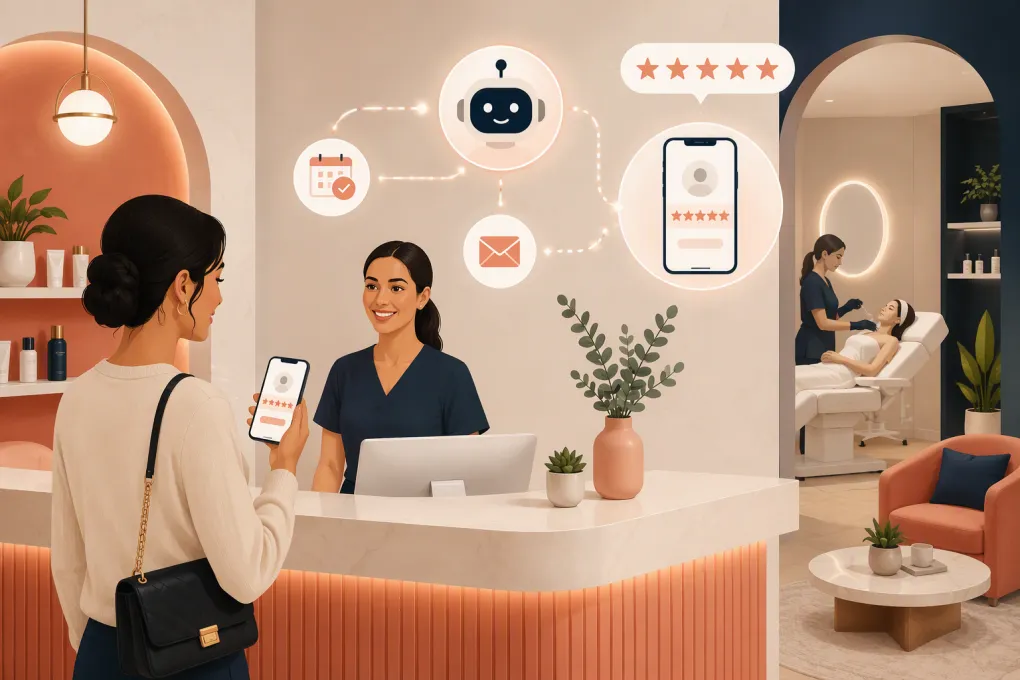
The better system is a simple automated workflow: identify an eligible completed appointment, wait for the right moment, send a privacy-conscious request, follow up once if appropriate, and alert the team when a client needs help. The goal is not to pressure clients or manufacture positive feedback. It is to make honest feedback easy while giving your staff a reliable process.
See how WTF Go can automate med spa follow-up without adding another front-desk task →
What an automated med spa review workflow should do
A useful workflow needs more than a scheduled text blast. It should account for the client, appointment status, location, communication consent, and any open service issue.
At minimum, your system should:
- Trigger only after a completed, eligible appointment.
- Use the correct review link for the location visited.
- Avoid treatment details or sensitive health information in messages.
- Exclude clients who have opted out of marketing or text communication where applicable.
- Pause requests when there is an unresolved complaint, refund, adverse reaction, or clinical escalation.
- Send no more follow-ups than necessary.
- Notify staff when a reply requires human or clinical attention.
- Record which message was sent and when.
Automation should remove repetitive work without removing judgment. Clinical concerns, billing disputes, and unhappy-client conversations still need a qualified person.
How to automate med spa review requests step by step
1. Choose the event that starts the workflow
The cleanest trigger is usually an appointment changing to a completed or checked-out status. A scheduled appointment is not enough: clients cancel, reschedule, or leave before a service is performed.
For memberships, packages, or appointments involving multiple visits, decide whether the request should follow:
- A client’s first completed visit.
- Completion of a treatment series.
- A milestone appointment.
- A reasonable interval since the client’s last request.
Do not ask after every visit. Add a suppression rule so repeat clients are not contacted too frequently. Each location should also have its own trigger and review destination.
2. Build an eligibility filter
Before the message sends, check whether the client is eligible. A practical filter might require:
- Completed appointment status.
- A valid mobile number or email address.
- Appropriate communication consent.
- No recent review request.
- No unresolved support or clinical flag.
- No prior opt-out.
- The correct location assignment.
Be careful with satisfaction-based filtering. Asking clients whether they are happy and only giving happy clients a public review link can become review gating. A safer approach is to offer the same honest review opportunity to all eligible clients while making private support available to everyone.
3. Set timing by service type
Timing should reflect the client experience. For a straightforward service, the same evening or following morning may be appropriate. For treatments where results, discomfort, or aftercare develop over time, a clinical check-in may need to happen first.
Separate these two messages:
- Care follow-up: Checks recovery, symptoms, or aftercare and routes concerns to staff.
- Review request: Invites honest public feedback after the immediate care window.
If a client reports a concern during the care follow-up, pause the review workflow. Resolve the issue before any further request. This is better for the client and prevents tone-deaf automation.
4. Send clients directly to the correct review page
Every extra tap creates friction. Use the direct review link associated with the med spa’s verified business profile instead of linking to a homepage and asking clients to search.
For multi-location med spas:
- Maintain a separate link for each physical location.
- Map the link to the appointment location, not the client’s home location.
- Test every link on both iPhone and Android devices.
- Confirm that the correct business name and address appear.
- Recheck links after profile, location, or ownership changes.
Google is often the priority because those reviews are visible in local search and Maps. Other platforms have different solicitation rules. Yelp, for example, has historically discouraged businesses from directly asking for reviews, so verify each platform’s current policy before automating requests.
5. Write a short, neutral message
The request should sound human without implying that only positive feedback is welcome. Avoid phrases such as “Leave us five stars” or “Help us keep our perfect rating.”
A straightforward SMS template:
Hi {{first_name}}, thank you for visiting {{location_name}}. If you would like to share feedback about your experience, you can leave an honest review here: {{review_link}}. Reply STOP to opt out.
An email version can include a little more context:
Thank you for visiting {{location_name}}. Client feedback helps our team understand what is working and where we can improve. If you have a moment, you can share an honest review here: {{review_link}}.
Keep treatment names, conditions, procedure details, and other potentially sensitive information out of the message. Even if a client has openly discussed a service elsewhere, your outbound communication should remain discreet.
See how Fitty can handle routine client follow-up while your team focuses on care →
6. Add one restrained follow-up
If the first request is delivered but receives no engagement, one reminder may be reasonable. Send it after enough time has passed for the client to act, and suppress it if the client has replied, opted out, raised a concern, or already completed the requested action where your system can detect that.
Example:
Hi {{first_name}}, a quick follow-up from {{location_name}}. If you would like to share feedback about your visit, here is the review link: {{review_link}}. No need to respond if you have already left one.
Do not turn a review request into a long campaign. Repeated reminders create opt-outs and make the interaction feel transactional.
Route replies instead of leaving them in an inbox
Clients will respond to automated messages, even when the message only asks them to click a link. Your workflow needs rules for handling those replies.
Route messages based on intent:
- Clinical concern: Escalate promptly to the designated clinical team member.
- Billing or membership issue: Assign it to the appropriate administrative owner.
- Scheduling request: Move the conversation into booking.
- Positive private feedback: Thank the client without repeatedly pushing for a public review.
- Opt-out: Apply the suppression immediately.
- General question: Let an AI agent answer when it has approved information, with a clear human handoff path.
Fitty, WTF Go’s AI receptionist and agent, can keep these conversations from becoming disconnected front-desk tasks. It can handle routine follow-up and scheduling conversations around the clock while routing situations that require staff judgment. That is particularly useful when replies arrive after hours or across multiple locations.
Keep the workflow compliant and trustworthy
Review automation touches messaging consent, privacy, platform policies, and advertising rules. Requirements can vary by channel, state, use case, and client relationship, so have qualified counsel review your exact process.
Operationally, follow these guardrails:
- Honor SMS and email opt-outs promptly.
- Keep protected or sensitive health details out of review requests.
- Do not buy reviews or use staff-created client reviews.
- Do not offer undisclosed incentives for positive reviews.
- Do not discourage negative reviewers while directing only satisfied clients to public platforms.
- Do not edit or prewrite the client’s review.
- Give staff clear escalation instructions for safety or treatment concerns.
- Limit system access according to each employee’s role.
If you offer any incentive for feedback, review the current rules of the platform and applicable Federal Trade Commission guidance first. The safest operational choice is generally to request honest feedback without tying compensation to the rating or sentiment.
Measure the workflow, not just the star rating
A higher average rating is not the only sign that the process works. Track the workflow itself so you can find broken links, poor timing, and location-level execution problems.
Useful measures include:
- Messages sent, delivered, and failed.
- Review-link clicks where tracking is available.
- New review activity by location.
- Time between completed appointments and requests.
- Reply and opt-out volume.
- Number and type of escalated concerns.
- Staff response time to routed issues.
- Duplicate or overly frequent requests.
Review these by location and service category. If one location sends many messages but receives little engagement, test its link, timing, appointment-status discipline, and message wording before assuming clients are unwilling to respond.
A practical setup checklist
Before turning the automation on, confirm that you have:
- Claimed and verified each location’s business profile.
- Collected and tested each direct review link.
- Defined the completed-appointment trigger.
- Set request-frequency limits.
- Documented consent and opt-out rules.
- Removed treatment details from templates.
- Created pause rules for open concerns.
- Assigned clinical, billing, and scheduling replies.
- Tested the workflow using internal records.
- Trained staff on what automation handles and what still requires a person.
Start with one location or appointment category, monitor the replies, and correct gaps before expanding. A controlled launch is easier to audit than switching on every workflow at once.
Build a med spa review and follow-up workflow with WTF Go and Fitty →
The best review-request system is not the most aggressive one. It is the one that consistently contacts eligible clients, respects privacy and platform rules, catches service problems, and gives staff a clear next action. Once that process is reliable, automation can run it without another daily checklist at reception.
Frequently asked questions
When should a med spa send an automated review request?
Send it after a confirmed completed appointment and after any necessary clinical check-in. If the client reports a concern, pause the request and route the issue to staff.
Can a med spa ask only satisfied clients for Google reviews?
Selective solicitation can amount to review gating. Offer the same honest review opportunity to all eligible clients rather than sending the public link only after positive feedback.
Can review requests mention the client's treatment?
It is safer to keep treatment names, conditions, and procedure details out of SMS and email requests. Use neutral language such as “your visit” or “your experience.”
How many review-request reminders should a med spa send?
One initial request and one restrained reminder are generally enough. Stop messages after an opt-out, concern, reply, or completed action when detectable.
Can Fitty automate med spa review follow-up?
Fitty can handle routine follow-up conversations, answer questions, support booking, and route issues that need staff attention. The workflow should be configured around your consent, privacy, location, and escalation rules.
Keep reading
Run your gym on autopilot with WTF Go
Fitty — your AI receptionist — answers calls and DMs, fills classes, follows up with every lead, and collects dues while you coach.